Timesheets
Sally tracks time where the work happens — on projects and, optionally, on individual tasks. Entries carry billable and validation state, move through a two-stage invoicing lifecycle, and roll up into a report you can slice by project, client, task, or user. Humans log time in the web UI; agents log and report time through the same MCP tools.
Time entries
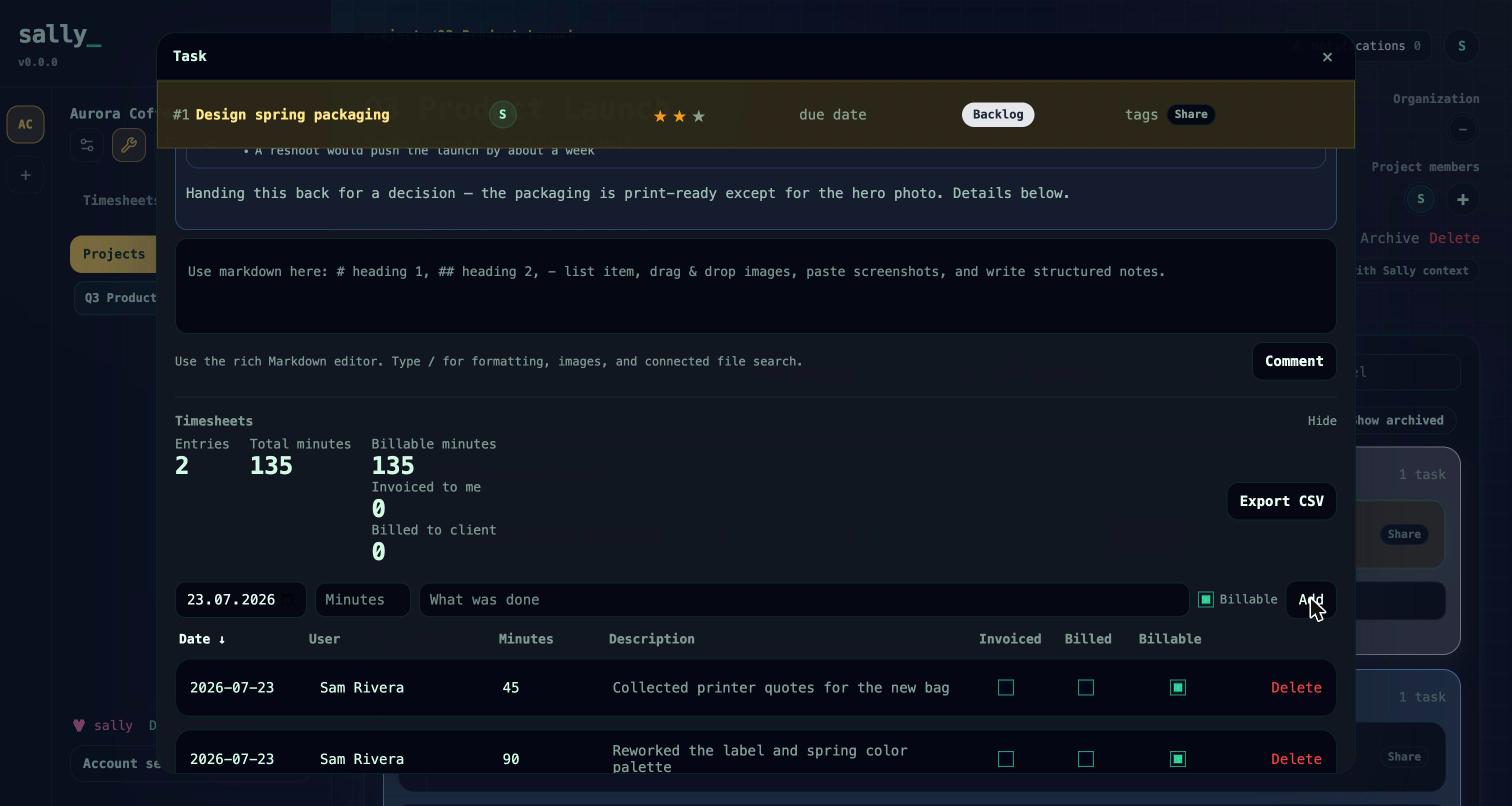
A timesheet entry records time one user spent on one project (and optionally one task):
- User — who did the work.
- Project — required. Time always belongs to a project.
- Task — optional. Attach the entry to a specific task for finer reporting.
- Date — the day the work happened.
- Minutes — a positive integer duration.
- Description — free text describing the work.
- Billable — a flag, on by default.
- Validated — a flag, off by default (see below).
Entries are created, edited, and deleted per user. By default you manage your own entries; reassigning an entry to a different user, or marking one validated, requires the project OWNER role.
Time entries also surface in a project's timesheet summary — see Projects & tasks.
Billable and validated
Two independent flags shape how an entry is counted:
- Billable distinguishes client-billable work from internal or non-billable time. It defaults to on, and it drives the billable totals in reporting.
- Validated marks an entry as reviewed and approved. It defaults to off, and only a project OWNER can set it. Reports exclude validated entries by default so you can focus on what still needs review; pass a flag to include them.
The two-stage invoicing lifecycle
Invoicing locks entries in two distinct stages so that submitting your own time and billing a client are separate, permission-gated steps:
- Invoiced by user. When an entry is invoiced at the user stage, it is locked against further edits by non-billing users. This freezes the record once time has been submitted.
- Invoiced to client. The client-billing stage records when the time was invoiced to the client and by whom. These fields require workspace billing access, and they are hidden entirely from users without it.
The split means a team member can log and submit their hours without seeing or touching client-billing state, while a user with billing access controls when time is actually billed out. "Client" here is the CRM organization linked to the project — see CRM.
Reporting
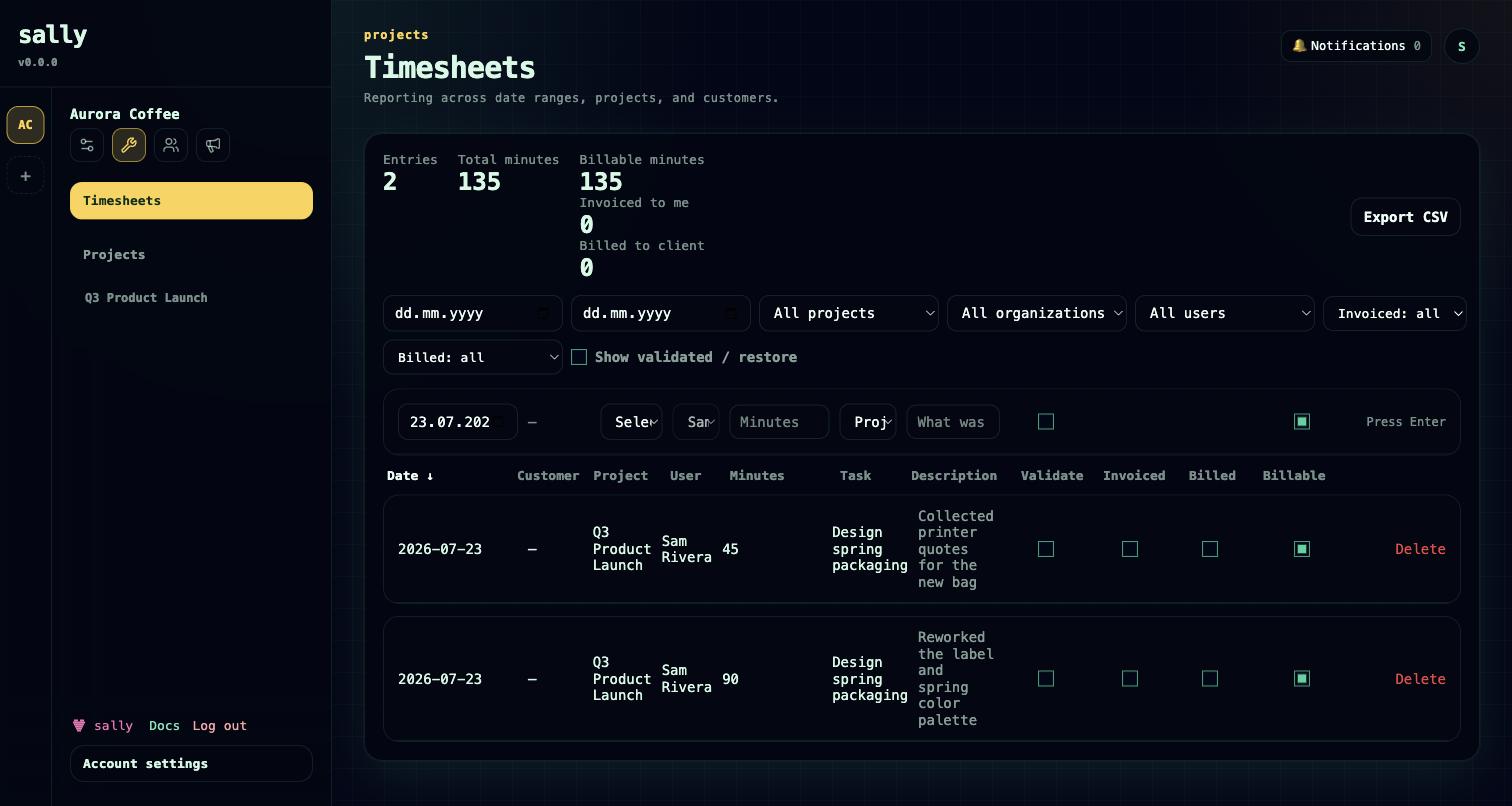
The timesheet report aggregates entries across a workspace and returns both the matching entries and a summary. Filter by:
- Date range —
from/to. - Project
- Client — the CRM organization linked to a project.
- Task
- User
- Show validated — include validated entries, which are otherwise excluded.
The summary returns total minutes, billable minutes, invoiced minutes, minutes invoiced to client, an entry count, and whether the caller has billing access. Users with billing access see the client-invoicing figures; others do not.
Scoping follows project membership: workspace OWNERs and project OWNERs see all entries in scope, while other members see only their own. Use timesheet.users to list the users you're allowed to report on.
With agents
Timesheets are part of the hosted MCP surface, so an agent can log time from an external system or assemble a client summary on demand. The tools mirror the web UI's logic and permission checks exactly:
timesheet.add— create an entry.timesheet.update— edit an entry.timesheet.delete— remove an entry.timesheet.list— list entries.timesheet.report— run the aggregated report.timesheet.users— list users available for reporting.
Client-invoicing fields are only writable with workspace billing access, whoever — or whatever — is making the call. See Connect your agent.
Note: Some report filters — for example, filtering by invoiced status — are currently available through the HTTP API and web UI only, not the MCP
timesheet.reporttool.